
You think of the message now: a birthday wish for midnight, a reminder to a client on Monday morning, a note to the family group before a trip. Call Reminder & To-Do List holds it until that moment, then puts it one tap from sent.
How to schedule a WhatsApp message
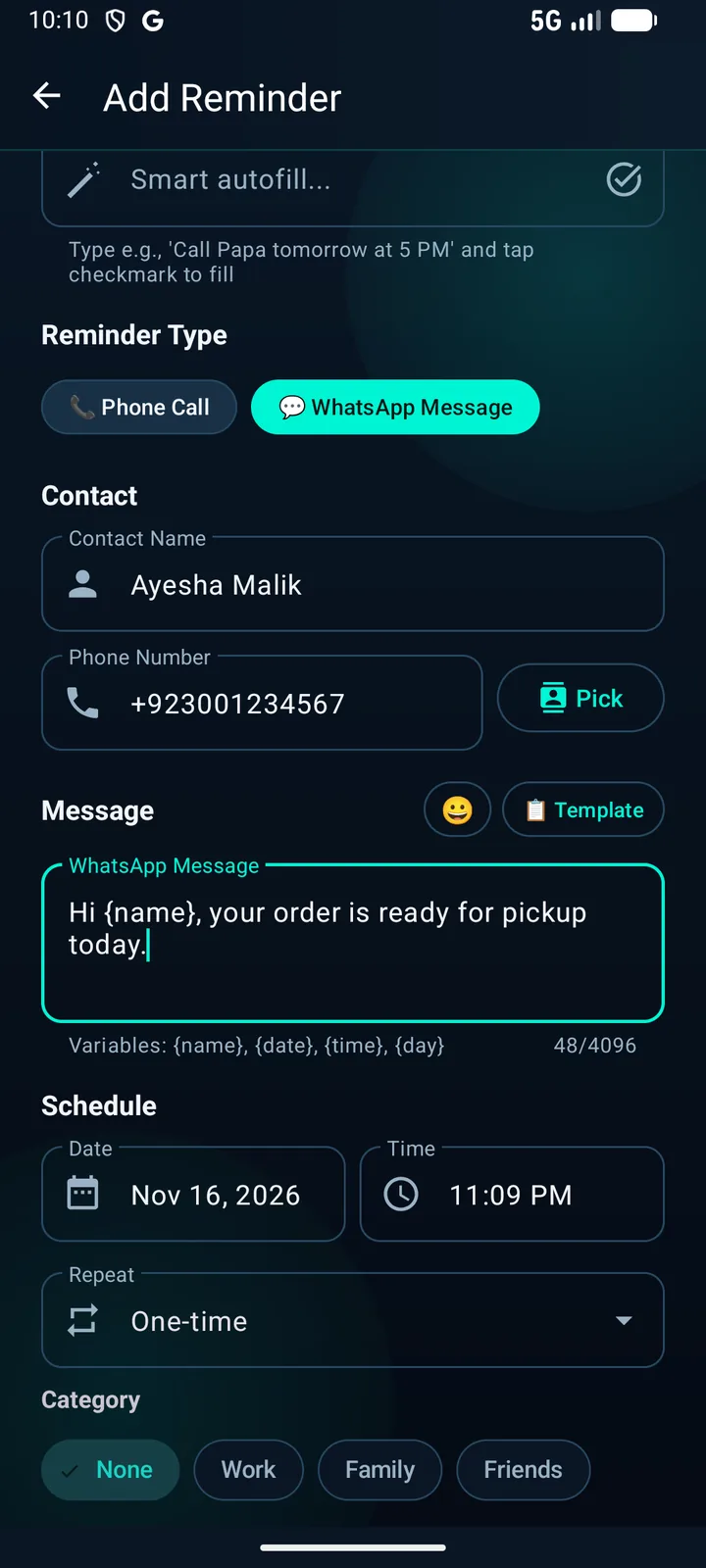
- Install Call Reminder & To-Do List from Google Play and open it.
- Tap the plus button and choose WhatsApp message.
- Pick a contact, or type the phone number with its country code.
- Write the message, or fill it from a saved template.
- Set the date and the time. Add a repeat if it should go again.
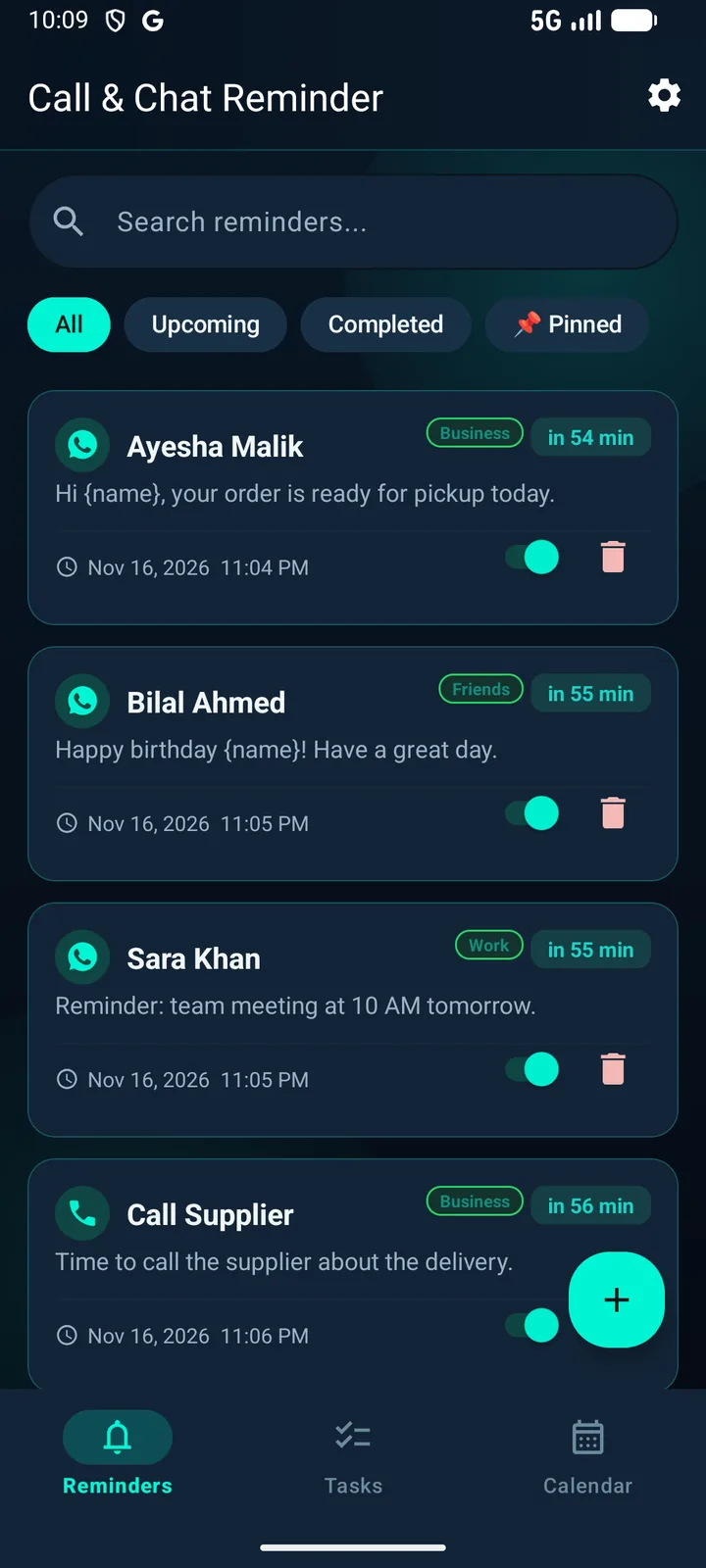
- Save. The reminder now waits, even with the phone locked or offline.
What happens at the scheduled time
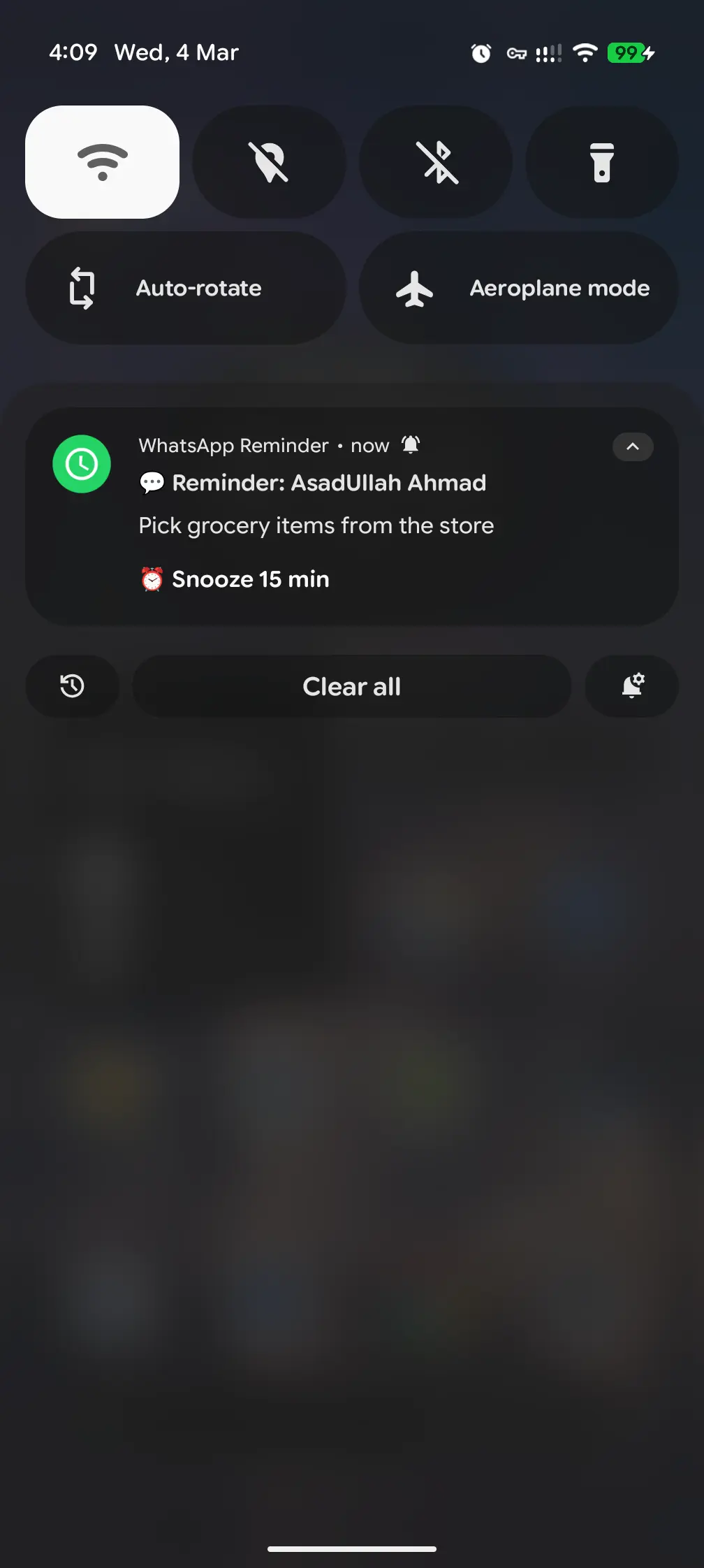
A notification appears with three buttons: Send now, Mark done and Snooze. Tap Send now and WhatsApp opens on the right chat with your message already typed. Tap the send arrow and it is delivered.
The app never presses send for you. That is on purpose: you see the chat before anything goes out, and the app stays clear of automated sending, which WhatsApp’s terms restrict.
Send the same message again and again
Some messages are not once. Set a repeat and the reminder comes back on its own:
| Repeat | Good for |
|---|---|
| Daily | A good morning message, a daily report to your team |
| Weekly | A Friday check-in with your parents |
| Monthly | A rent or invoice reminder to a tenant or client |
| Chosen days | A class reminder on Monday and Thursday |
| Every few days | A follow-up every three days until someone replies |
For words you send often, save a template once and pick it the next time you schedule.
Scheduling on WhatsApp Business
The same steps work for WhatsApp Business. If both WhatsApp and WhatsApp Business are installed on the phone, the app opens the standard WhatsApp app.
If the reminder did not appear
- Allow notifications for the app in Android settings.
- Allow Alarms and reminders for the app, so it can ring at the exact minute.
- On phones that close background apps aggressively, set the app’s battery use to unrestricted.
A restart is not a problem: when the phone starts up again, every scheduled reminder is set again.